> For the complete documentation index, see [llms.txt](https://triton.pharos.ai/llms.txt). Markdown versions of documentation pages are available by appending `.md` to page URLs; this page is available as [Markdown](https://triton.pharos.ai/installing-pharos-triton.md).

# Installing Pharos Triton

Your journey into logging starts here! This article details how to set up the Pharos Triton tools so you can incorporate logging into your own code base.

## 1. Installing and Configuring Pharos <a href="#h_01hswdbmj3y683vqpc8npwc2f2" id="h_01hswdbmj3y683vqpc8npwc2f2"></a>

First, install the Pharos managed package, which includes the observability platform. There are several options:

* Signup for Pharos Free edition [from our website](https://pharos.ai/pricing/102).
* Sign up for a paid edition trial by visiting our [AppExchange listing here](https://appexchange.salesforce.com/appxListingDetail?listingId=a0N3A00000FMhhvUAD).

Next, complete the basic configuration steps. Please refer to [the Pharos guide here](https://support.pharos.ai/hc/en-us/articles/22352477522715-Installing-and-Configuring-Pharos). The entire process shouldn't take more than 10 minutes of your time, depending on how quickly the package installs in your org.

{% hint style="info" %}
Pharos Free Edition is indeed **free.** Completely. Now and forever. No hidden fees. This is our contribution to the Salesforce community and we will stand by it.
{% endhint %}

## 2. Deploy Pharos Triton <a href="#id-01hswedx82r2bk16vnnmd9vnjv" id="id-01hswedx82r2bk16vnnmd9vnjv"></a>

There are 2 delivery methods. We recommend option A for its simplicity.

* **Option A:** Deploy via an unlocked managed package
  * [Sandbox install link](https://resources.pharos.ai/pharos-triton-sandbox)
  * [Production (non-sandbox) install link](https://resources.pharos.ai/pharos-triton-prod)\\
* **Option B:** Visit us at [this Github repo](https://resources.pharos.ai/pharos-triton-github). The code is available and free for all to use and modify as necessary. Feel free to utilize your favorite IDE or deployment tool to release the logger code in all environments as necessary. We recommend that the log util is deployed to production once it has been vetted through your development process. As your sandboxes are refreshed the log util will become available there as well.

{% hint style="info" %}
If you've evaluated Pharos in the past and installed the Error Generator package, you may notice there is a Log.cls file included. This is actually a condensed version of Pharos Triton with some slight modifications. We recommend you use the official Triton version, however.
{% endhint %}

## 3. Triton Configuration <a href="#h_01hswdbmj3y683vqpc8npwc2f2" id="h_01hswdbmj3y683vqpc8npwc2f2"></a>

All of Triton's admin configuration lives in one place in the Pharos app. Navigate to **Pharos Admin → Advanced → Triton**.

<figure><img src="https://3094374025-files.gitbook.io/~/files/v0/b/gitbook-x-prod.appspot.com/o/spaces%2FFlq7dXDt5Z9LFxymJV0A%2Fuploads%2Fgit-blob-e2bdd0868c50dba5cb41aadb32b76b09f644ac45%2Ftriton-admin-menu.png?alt=media" alt="Pharos Admin Advanced menu with Triton selected"><figcaption><p>Pharos Admin → Advanced → Triton</p></figcaption></figure>

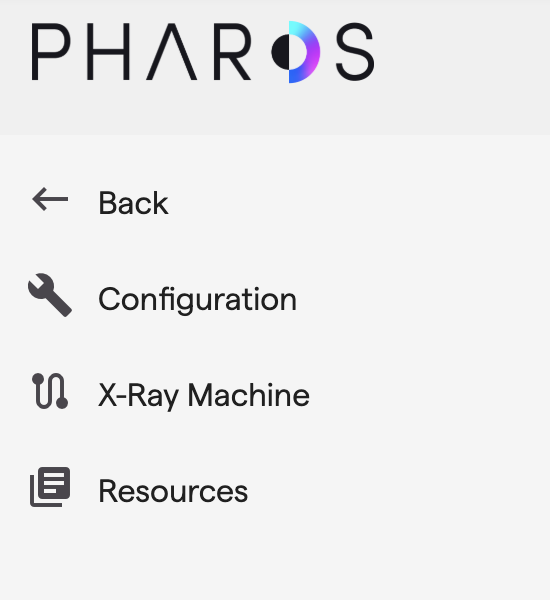
The Triton area has its own left-hand navigation:

* **Configuration** — the platform event, settings, and log-level controls covered below.
* **X-Ray Machine** — a testing and diagnostics workspace for Triton.
* **Resources** — deployment links (sandbox / production install), the GitHub repository, and a link to this documentation.

<figure><img src="https://3094374025-files.gitbook.io/~/files/v0/b/gitbook-x-prod.appspot.com/o/spaces%2FFlq7dXDt5Z9LFxymJV0A%2Fuploads%2Fgit-blob-0a9bffc1a4b16d5b8219076724d2dddeee25c803%2Ftriton-nav.png?alt=media" alt="Triton area navigation: Configuration, X-Ray Machine, Resources"><figcaption><p>The Triton area navigation</p></figcaption></figure>

**Configuration** is organized into three tabs — **Platform Event**, **Settings**, and **Log Levels**.

### 3a. Platform Event

Pharos Triton is based on platform events. In other words, every time logs are flushed, a platform event gets fired off.

In this section we will configure Pharos to raise platform events, thus enabling the use of the log util. These controls now live on the **Platform Event** tab of Triton → Configuration.

<figure><img src="https://3094374025-files.gitbook.io/~/files/v0/b/gitbook-x-prod.appspot.com/o/spaces%2FFlq7dXDt5Z9LFxymJV0A%2Fuploads%2Fgit-blob-c21ab3c5ae94056978d26a296bd0970b003ea122%2Ftriton-config-platform-event.png?alt=media" alt="Triton Configuration - Platform Event tab"><figcaption><p>Triton → Configuration → Platform Event</p></figcaption></figure>

Follow the steps in this quick tutorial to complete the configuration, and you're done!

{% embed url="<https://app.arcade.software/share/rk1d50LwD0F3ccO5JAqf>" %}

Feel free to run a test at the end as well. You can come back to the results in the Logs tab in case the test takes a little while.

{% hint style="info" %}

### Why Platform Events? <a href="#h_01ht0gsafztervtjm33sb0emd7" id="h_01ht0gsafztervtjm33sb0emd7"></a>

Platform events are a great way to ensure reliable logging that will not get rolled back no matter what happens to the original transaction. Platform event operations also don't not count against DML limits, which is important in high volume processing situations. It is the de facto standard for logging on the Salesforce platform and is utilized by many other open source logging frameworks. For more information about platform events please refer to [Salesforce developer documentation](https://developer.salesforce.com/docs/atlas.en-us.platform_events.meta/platform_events/platform_events_intro.htm).
{% endhint %}

### 3b. Settings

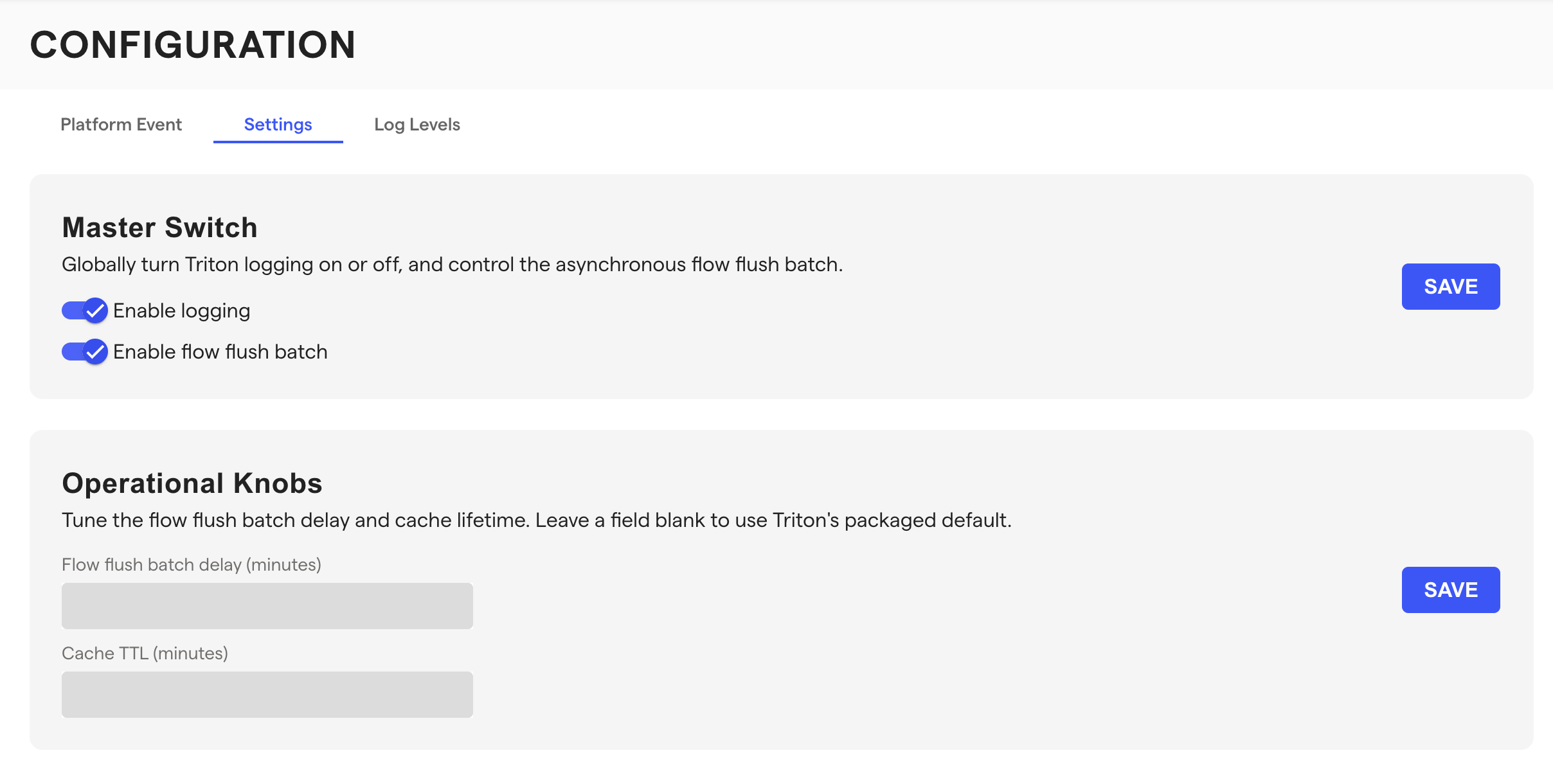
The **Settings** tab exposes Triton's runtime switches and operational knobs. These map directly to Triton's `TritonSettings__c` custom settings.

<figure><img src="https://3094374025-files.gitbook.io/~/files/v0/b/gitbook-x-prod.appspot.com/o/spaces%2FFlq7dXDt5Z9LFxymJV0A%2Fuploads%2Fgit-blob-24ef6d5f4d7dacce8f5fa3bdaa5bde46c80596f1%2Ftriton-config-settings.png?alt=media" alt="Triton Configuration - Settings tab"><figcaption><p>Triton → Configuration → Settings</p></figcaption></figure>

**Master Switch**

* **Enable logging** — the master switch for all Triton logging (Apex, Flow, and LWC). Turn it off to short-circuit every log before it is built or persisted — a global kill switch for maintenance windows or noisy incidents.
* **Enable flow flush batch** — controls how Flow logs are published. When on, Flow logs are buffered and published by the asynchronous `TritonFlowFlushBatch`. When off, Flow logs are flushed immediately (synchronously, in-transaction). No logs are lost either way.

**Operational Knobs**

Leave a field blank to use Triton's packaged default.

* **Flow flush batch delay (minutes)** — how long the flush batch waits before it runs, giving concurrent Flows time to add their logs to the shared buffer. Packaged default: **1 minute**.
* **Cache TTL (minutes)** — how long Triton keeps the transaction id and buffered Flow logs in platform cache. Packaged default: **5 minutes**.

For the mechanics behind these, see [Buffering, Flushing & Deferred Publishing](/core-concepts/buffering-flushing.md) and the [TritonFlowFlushBatch](/methods-reference/apex-methods-reference/tritonflowflushbatch.md) reference.

### 3c. Log Levels

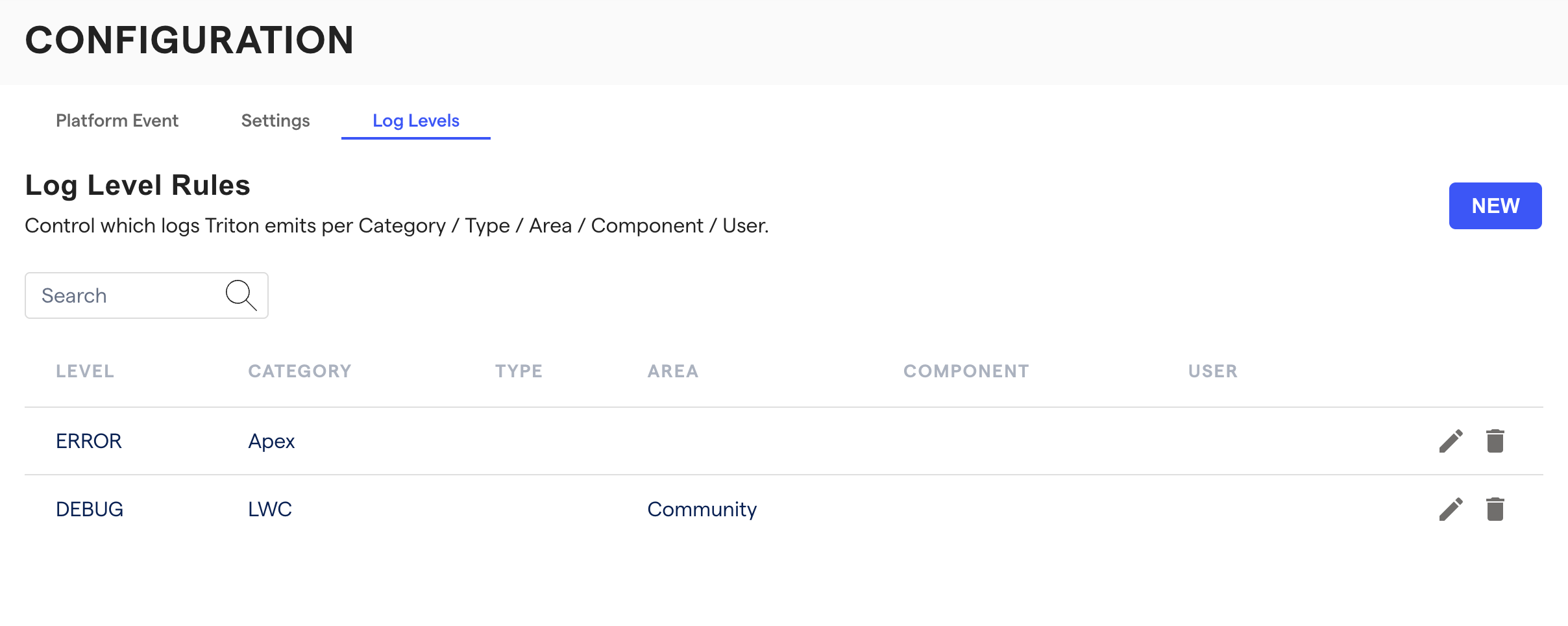
The **Log Levels** tab is a visual editor for Triton's `Log_Level__mdt` rules — the same runtime filtering you'd otherwise manage as custom metadata. Each rule controls which logs Triton emits, scoped by any combination of **Level**, **Category**, **Type**, **Area**, **Component**, and **User**.

<figure><img src="https://3094374025-files.gitbook.io/~/files/v0/b/gitbook-x-prod.appspot.com/o/spaces%2FFlq7dXDt5Z9LFxymJV0A%2Fuploads%2Fgit-blob-714a4c19f109c88a51a93460351d18c43e6fe702%2Ftriton-config-log-levels.png?alt=media" alt="Triton Configuration - Log Levels tab"><figcaption><p>Triton → Configuration → Log Levels</p></figcaption></figure>

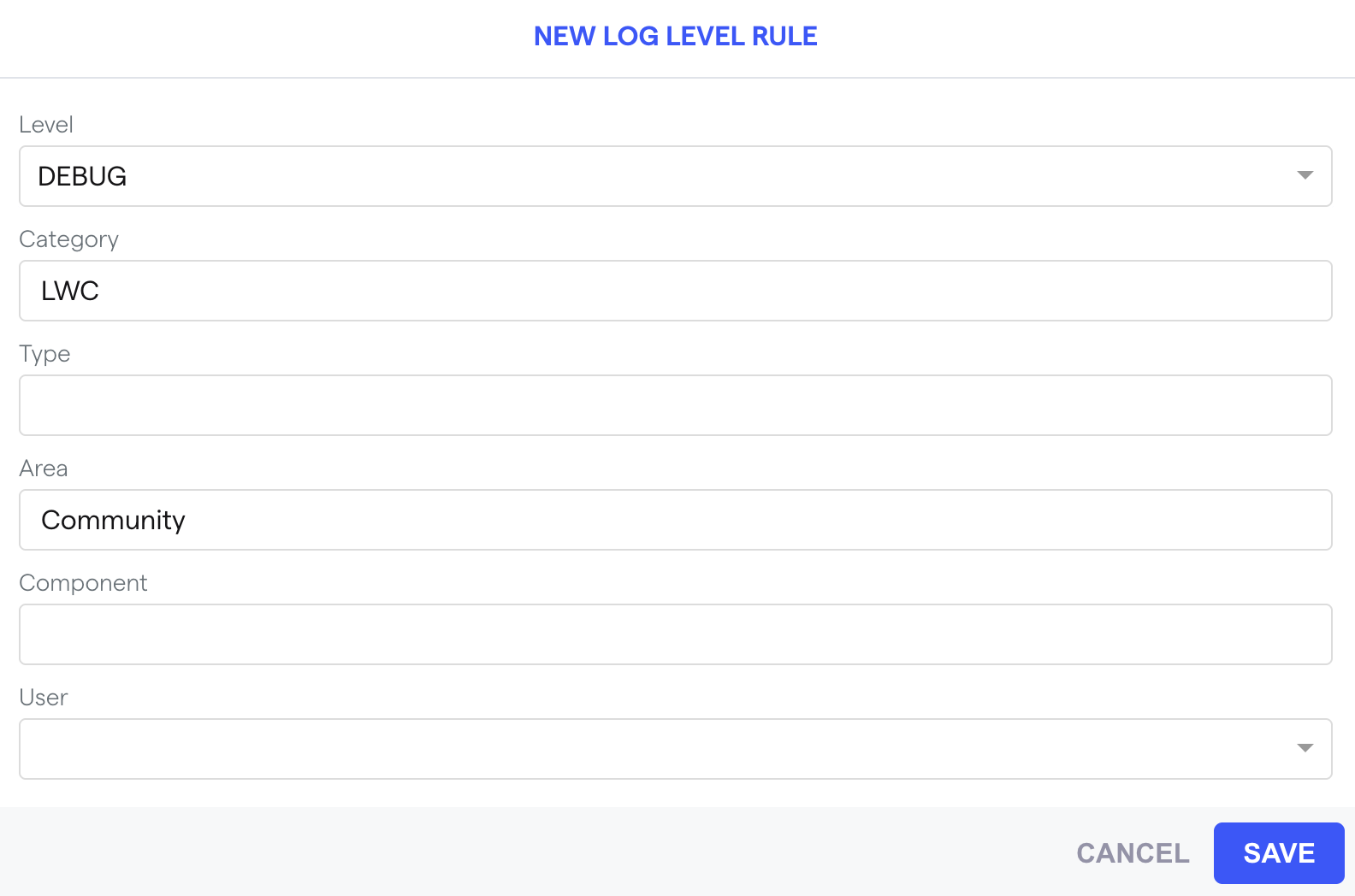
Click **NEW** to add a rule, or the pencil / trash icons to edit or delete an existing one. A rule sets a **Level** (the threshold) plus one or more scoping fields; leave a scope field blank to apply the rule more broadly.

<figure><img src="https://3094374025-files.gitbook.io/~/files/v0/b/gitbook-x-prod.appspot.com/o/spaces%2FFlq7dXDt5Z9LFxymJV0A%2Fuploads%2Fgit-blob-69fcddc9685e5764c0bbf1931dbfff788bd11c04%2Ftriton-config-new-log-level-rule.png?alt=media" alt="New Log Level Rule dialog"><figcaption><p>Creating a new log level rule</p></figcaption></figure>

For how thresholds and specificity are resolved, see [Log Levels](/core-concepts/log-levels.md) in Core Concepts.

## 4. Platform Cache Setup <a href="#platform-cache-setup" id="platform-cache-setup"></a>

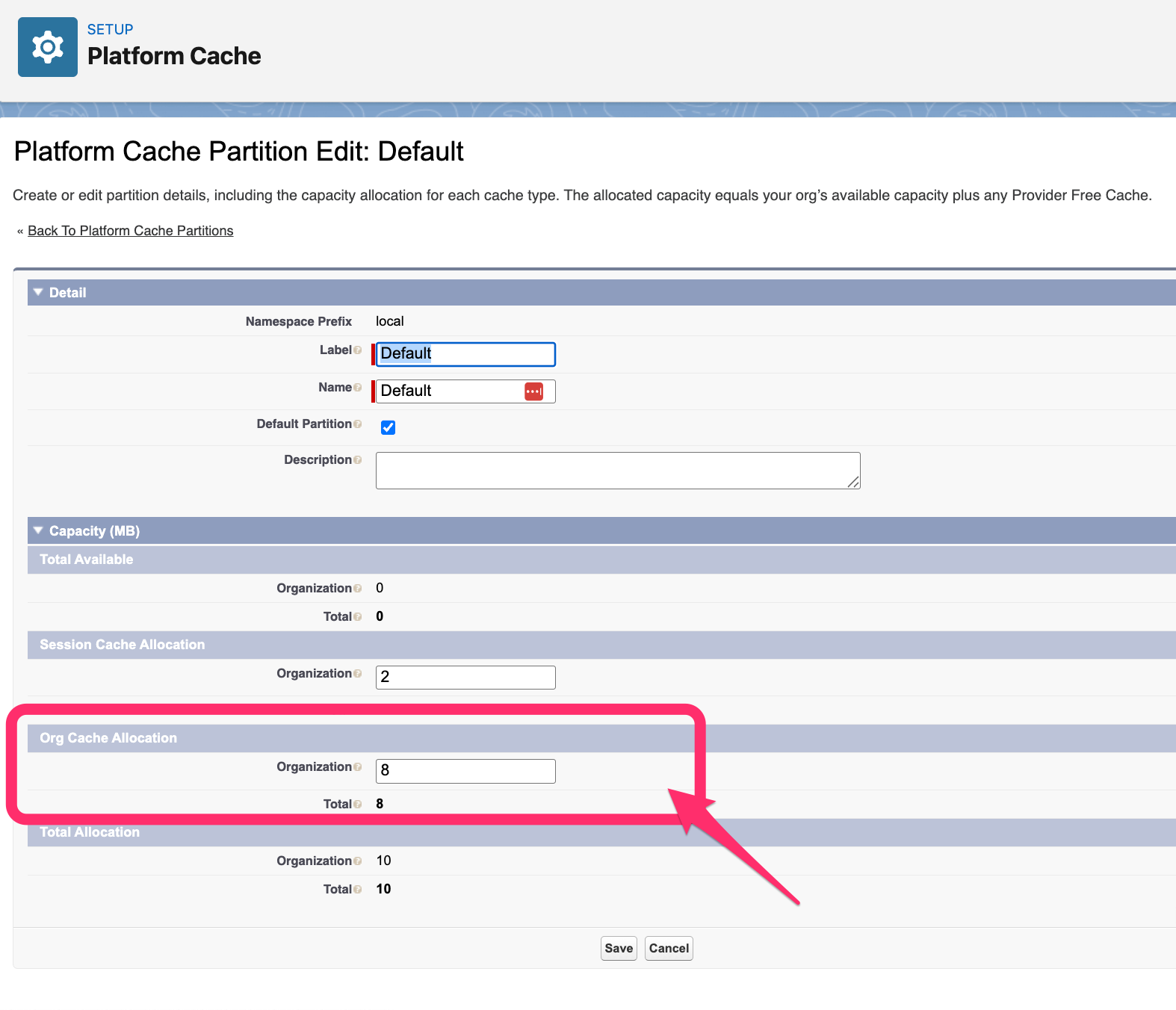
Triton requires a platform cache partition to be configured. Even if you don't plan to use Triton's cache-based transaction management features, this setup is necessary for Triton's Apex tests to pass.

### Creating a Cache Partition

1. Navigate to **Setup → Platform Cache**
2. Click **New Platform Cache Partition**
3. Configure the partition with the following settings:
   * **Label**: `Default` (or your preferred name)
   * **Name**: `Default`
   * **Default Partition**: ✅ **Check this box** — This is critical! Triton requires a default partition to function properly with cache-based transaction management.

### Allocating Org Cache Memory

{% hint style="warning" %}
You must allocate memory to the **Org Cache Allocation** section for Triton's caching to work. Without Org cache allocation, Triton cannot store transaction IDs or buffer Flow logs.
{% endhint %}

4. In the **Org Cache Allocation** section, set the **Organization** value to at least `1` MB
5. Click **Save**

The image below shows the correct configuration with the Default Partition checkbox and Org Cache Allocation highlighted:

<figure><img src="https://3094374025-files.gitbook.io/~/files/v0/b/gitbook-x-prod.appspot.com/o/spaces%2FFlq7dXDt5Z9LFxymJV0A%2Fuploads%2Fgit-blob-8922f63278f4c29053e5ef57387734a1e8d10105%2Fcache_partition.png?alt=media" alt="Platform Cache partition configuration showing Default Partition checkbox and Org Cache Allocation settings"><figcaption><p>Suggested cache partition configuration</p></figcaption></figure>

{% hint style="info" %}
For more detailed information on platform cache configuration, see [Set Up Platform Cache](https://help.salesforce.com/s/articleView?id=sf.data_platform_cache_setup.htm\&type=5) in the Salesforce documentation.

To learn how to use platform cache with Triton for LWC and Apex integration, see [Platform Cache for Transactions](/beyond-apex/lwc-and-apex-cache.md).
{% endhint %}

## 5. Configure Permissions <a href="#configure-permissions" id="configure-permissions"></a>

Pharos Triton comes with three permission sets to help manage access:

### Triton End User

* **Purpose**: Lets a user invoke Triton logging directly, from outside Apex
* **Access**: Apex class access only — no object permissions, no field-level security, no custom metadata access
* **Includes**: Access to the Triton Apex classes (`Triton`, `TritonBuilder`, `TritonFlow`, `TritonHelper`, `TritonLwc`, `TritonTypes`)

### Triton Read

* **Purpose**: For users who need to view and analyze logs
* **Access**: Read-only access to log fields and Log Level custom metadata, plus access to `LogLimitsController` — the set grants no object-level CRUD and no system permissions of its own
* **Includes**:
  * Read access to Log Level custom metadata
  * Read access to all log fields (CPU time, heap size, SOQL queries, etc.)
* **When to use**: Assign to developers, support staff, and business analysts who need to monitor and troubleshoot using logs

### Triton Write

* **Purpose**: For Triton and Pharos administrators, and for the platform-event subscriber that persists logs (see below)
* **Access**: Read and edit access to log fields, read access to Log Level custom metadata, plus access to the Triton Apex classes — the set grants no object-level CRUD and no system permissions of its own
* **Includes**:
  * Edit access to all log fields (CPU time, heap size, SOQL queries, span and transaction fields) — access to the Log object itself comes from your Pharos permission sets, not from this one
  * Read access to Log Level custom metadata — identical to `Triton Read`. Creating or editing a Log Level rule additionally requires the Customize Application system permission, whether through the Triton console or through Setup
  * Access to the Triton Apex classes — those in `Triton End User`, plus `LogLimitsController`
* **When to use**: Assign to Triton administrators, Pharos platform administrators, and the running user of the log subscriber

### Do you actually need Triton End User?

Salesforce only checks Apex class access at an **entry point** — the place where a user invokes Apex from outside Apex (an Aura/LWC `@AuraEnabled` call, an invocable action from a screen flow, a REST/SOAP request, a Visualforce controller). Once execution is inside Apex, every call it makes to another class runs unchecked, regardless of who kicked off the transaction.

That means the common case needs **no permission set at all**: a user saves a record, a trigger fires, the trigger's Apex calls `Triton.log()` to record what happened or catch an exception. The trigger runs in system context, so Salesforce never checks the user's access to the Triton classes. **Your general user population does not need `Triton End User`** just because their actions eventually cause a log to be written.

`Triton End User` is only needed by the user actually sitting at the entry point:

| Path into Triton                                      | Entry point?                                     | Needs `Triton End User`? |
| ----------------------------------------------------- | ------------------------------------------------ | ------------------------ |
| Apex trigger → `Triton.log()`                         | No — runs in system mode                         | No                       |
| Apex class, batch, queueable, `@future`, scheduled    | No                                               | No                       |
| Record-triggered / autolaunched flow (system context) | No                                               | No                       |
| Screen flow (user context) → Triton Log action        | Yes — `@InvocableMethod TritonFlow.log`          | Yes                      |
| LWC using the `triton` module                         | Yes — `@AuraEnabled TritonLwc.saveComponentLogs` | Yes                      |
| Visualforce / REST / SOAP calling Triton directly     | Yes                                              | Yes                      |
| Experience Cloud / guest users doing any of the above | Yes                                              | Yes                      |

Two things worth calling out explicitly:

* **Flows.** The line that matters is user context vs. system context, not screen vs. autolaunched. Screen flows always run as the user, so the Log action needs `Triton End User` on anyone who runs one. Record-triggered and autolaunched flows default to system context and need nothing — but an autolaunched flow explicitly configured to run in user context does need the permission set.
* **LWC is unavoidable.** Any component built on the `triton` LWC module calls `TritonLwc.saveComponentLogs`, a hard `@AuraEnabled` entry point — there's no system-context path around it. Every user of an instrumented LWC needs `Triton End User`, full stop. If that component sits in a customer community, that means every community user. Plan for it rather than discovering it in production.

{% hint style="info" %}
Best Practice: only assign `Triton End User` to the users who sit at one of the entry points above — most commonly, screen flow users and users of instrumented LWCs. Assign `Triton Read` to anyone monitoring logs, and reserve `Triton Write` for administrators and the platform-event subscriber.
{% endhint %}

### The platform-event subscriber needs Triton Write, not just Log\_Admin

Triton publishes a platform event; a separate subscriber process performs the actual `pharos__Log__c` insert when that event is received. That subscriber's running user needs **`Triton Write`**, because several of the fields Triton populates — the limit fields (CPU time, heap size, SOQL queries, etc.) and the span/transaction fields — are un-namespaced custom fields the subscriber needs field-level security on, on top of whatever access `Log_Admin` already grants.

If the subscriber is missing `Triton Write`, logs will still land — but silently missing their limit and span data. There's no error to alert you; the record is just incomplete. If you're seeing logs with empty limit fields, check the subscriber's permission sets before anything else.

### The Log Limits component needs Triton Read or Triton Write

The `logLimits` LWC component (the one that renders limit-usage bars on a Log record page) calls `LogLimitsController.getLimitUsage`. `LogLimitsController` is granted by both **`Triton Read`** and **`Triton Write`**, so anyone already monitoring logs with either set can use the component.

It is **not** granted by `Triton End User`. A user whose only Triton permission set is `Triton End User` — or who has none at all — gets an Apex class-access error on that component specifically when they open a Log page containing it. If you place the component on a page such users can reach, give them `Triton Read`.

## 6. Start Logging! <a href="#id-01hswedx82r2bk16vnnmd9vnjv" id="id-01hswedx82r2bk16vnnmd9vnjv"></a>

This is where the fun begins. We recommend you identify [which use cases](/readme.md#logging-use-cases) you'd like to tackle first such as troubleshooting, tracing or profiling, or anything else. Once you have an idea of what you'd like to start with, head on over to [Core Concepts](/core-concepts.md) to get started.